You receive a set of 47 drawing files from a structural consultant. You open the first one and find 83 layers named in a mix of German abbreviations and internal codes that bear no resemblance to your firm's AIA layer convention. The second file uses a completely different scheme. By the third file, you realize this cleanup is going to consume your entire week.
This scenario plays out in architecture and engineering firms every day. Layer mapping - the process of translating non-standard layer names into a target standard - is one of the most tedious, repetitive, and error-prone tasks in CAD production. It is also one of the most consequential. Get it wrong, and downstream plotting, coordination, and BIM translation break in ways that are expensive to fix.
For decades, the only options were to do it by hand or to use rigid mapping tables that required extensive setup and broke whenever a new naming variation appeared. AI has changed that equation entirely.
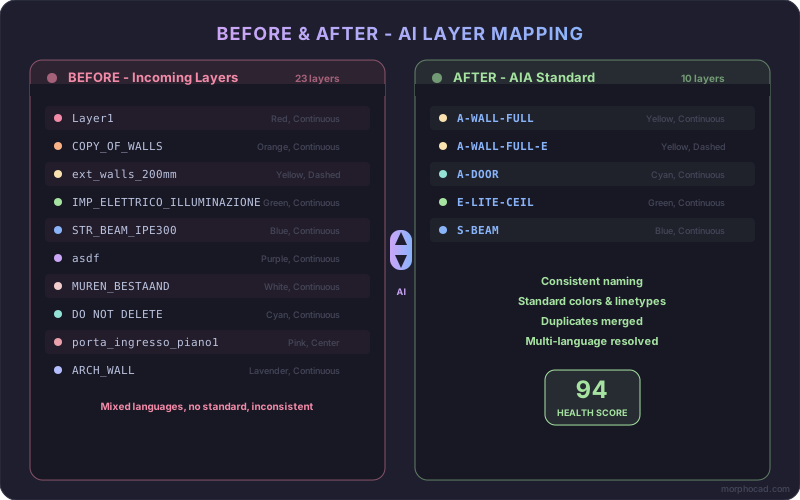
The Layer Mapping Problem
Why Layers Go Wrong
In a perfect world, every firm and every consultant would use the same layer naming convention. In reality, the AEC industry is fragmented across countries, disciplines, firm sizes, and legacy practices. Here is what CAD managers actually encounter:
-
Language variation: An Italian MEP consultant names layers
IMP_ELETTRICO_ILLUMINAZIONE. A Spanish structural engineer usesEST_VIGAS_HORMIGON. A Japanese architect uses abbreviated Romaji. The content is standard - electrical lighting, concrete beams, architectural elements - but the names are unique to each firm. -
Legacy conventions: Many firms have used their own internal standards for 20+ years. These layer names carry institutional memory and workflow dependencies that make switching to AIA or ISO 13567 a multi-year effort.
-
Inconsistency within firms: Even firms that have adopted a standard often drift over time. Different offices, different project types, and different generations of CAD technicians introduce variations.
A-WALL-FULLin one project becomesA-WALLSin another andARCH_WALLin a third. Implementing layer management best practices can reduce this drift significantly. -
Client-imposed standards: A firm might follow AIA internally but receive a project where the owner mandates ISO 13567 or a proprietary government standard. Every outgoing deliverable must be remapped.
-
Software interoperability: Files imported from Revit, MicroStation, SketchUp, or Rhino carry their own layer or level naming logic that rarely aligns with AutoCAD conventions.
The Real Cost
Layer mapping is not just an annoyance. It carries measurable cost:
-
Time: A skilled CAD technician manually mapping layers in a mid-size project (150-300 unique layers across multiple files) can spend 4-8 hours on initial mapping alone, plus ongoing maintenance as new files arrive.
-
Errors: Manual mapping is inherently error-prone. A misclassified structural layer that ends up on an architectural discipline can cause coordination conflicts. A layer mapped to the wrong lineweight produces incorrect plot output that may not be caught until printing.
-
Duplication: Without a persistent memory of past mappings, the same layer name gets manually mapped again on the next project. The firm pays for the same decision repeatedly.
-
Opportunity cost: Every hour a BIM manager spends on layer cleanup is an hour not spent on design coordination, quality review, or mentoring junior staff.
Manual vs. Automated Layer Mapping
The Manual Approach
The traditional workflow for layer mapping in AutoCAD looks like this:
- Open the drawing file.
- Open the Layer Properties Manager and review all layers.
- For each non-standard layer, determine what it contains by selecting objects on that layer.
- Decide the correct target layer name in your standard.
- Use
LAYTRANS(Layer Translator) or manual renaming to change the layer name. - Verify that colors, linetypes, and lineweights match the target standard.
- Repeat for every layer in every file.
AutoCAD's built-in Layer Translator (LAYTRANS) helps by letting you create a mapping file (.dwg or .dws) that pairs source layer names to target layer names. Once built, this mapping can be reused. However, LAYTRANS is purely string-based. It cannot infer that ext_walls_200mm should map to A-WALL-FULL unless you explicitly tell it so. Every new variation requires a new manual entry.
For a project with 50 unique non-standard layers, setting up a LAYTRANS mapping takes 30-60 minutes of careful work. For a project involving files from five different consultants with 200+ unique layers between them, you are looking at half a day - and that mapping is project-specific. The next project starts from zero.
The Automated Approach
An AI-powered AutoCAD plugin fundamentally changes this workflow:
- Open the drawing file (or select a batch of files).
- Select your target standard (AIA/NCS, ISO 13567, or a custom template).
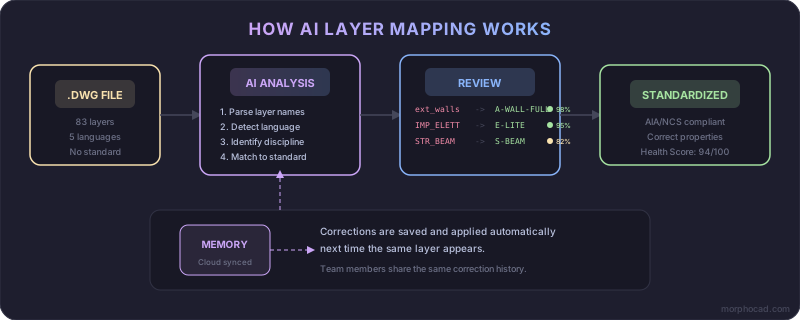
- The AI analyzes every layer name - parsing language, abbreviations, discipline indicators, and naming patterns - and proposes a mapping to the target standard.
- Review the AI's suggestions. Accept, modify, or reject each one.
- Apply the mapping. All layer names, colors, linetypes, and lineweights are updated in one operation.
- The system remembers your decisions for next time.
The critical difference is in step 3. An AI model trained on layer naming patterns across standards and languages can recognize that STR_BEAM_IPE300 is a structural beam layer, that E-LTG-CEIL follows a near-AIA convention for electrical ceiling lighting, and that MUREN_BESTAAND is Dutch for "existing walls." No mapping table could anticipate these variations, but a language-aware AI model handles them naturally.
How AI Layer Mapping Works
Understanding the technology behind AI layer mapping helps explain why it succeeds where rigid rule-based systems fail.
Semantic Analysis of Layer Names
Traditional mapping tools treat layer names as opaque strings. They can match exact names or apply simple wildcard patterns, but they cannot understand meaning.
AI-powered mapping performs semantic analysis. It breaks a layer name like IMP_IDRAULICO_SCARICHI into components (IMP = impianto/installation, IDRAULICO = hydraulic/plumbing, SCARICHI = drainage), understands the meaning of each component, and maps it to the appropriate standard layer - in this case, P-SANR (Plumbing, Sanitary) or the equivalent in ISO 13567.
This works across languages because the AI model has been trained on multilingual construction vocabulary. It recognizes discipline-specific terminology in English, German, French, Italian, Spanish, Portuguese, Turkish, Japanese, and more.
Contextual Confidence Scoring
Not every layer name is equally unambiguous. A layer called WALLS maps to A-WALL with near-certainty. A layer called MISC_01 could be almost anything.
Good AI mapping systems provide a confidence score with each suggestion. High-confidence mappings can be auto-applied. Low-confidence mappings are flagged for human review. This lets you focus your attention where it matters most instead of reviewing hundreds of obvious mappings.
Learning from Corrections
When you override an AI suggestion - changing a proposed mapping from A-FURN to I-FURN because your firm assigns furniture to the Interiors discipline - the system records that correction. On subsequent runs, it applies the learned preference automatically. Over time, the accuracy curve improves project by project, and the number of manual interventions decreases.
This correction memory is especially powerful in team environments. When a senior CAD manager makes a mapping decision, that knowledge propagates to every team member using the same workspace.
Step by Step with MorphoCAD
Here is how AI-powered layer mapping works in practice using MorphoCAD, an AutoCAD plugin built specifically for this workflow.
Step 1: Install and Connect
MorphoCAD installs as a standard AutoCAD plugin. After installation, it appears as a panel within AutoCAD. Log in with your MorphoCAD account to access your templates and correction history.
Step 2: Select Your Target Standard
Choose from built-in standards - AIA/NCS or ISO 13567 - or select a custom template that your firm has configured through the MorphoCAD dashboard. Custom templates let you define your exact layer list, including any firm-specific extensions to the base standard.
Step 3: Run the Analysis
With a drawing open, launch MorphoCAD's layer analysis. The plugin reads every layer in the current drawing, sends the layer names to the AI engine, and receives mapping suggestions in seconds. Each suggestion includes the source layer name, the proposed target layer name, and a confidence indicator.
Step 4: Review and Confirm
MorphoCAD presents the mapping results in a clear interface. High-confidence mappings are pre-approved. Uncertain mappings are highlighted for your attention. You can accept all suggestions, modify individual mappings, or reject any that do not apply.
Any modifications you make are stored as corrections and will be applied automatically in future runs.
Step 5: Apply the Mapping
Once you confirm the mappings, MorphoCAD applies them to the drawing. Layer names are updated, and layer properties (color, linetype, lineweight) are set to match the target standard. Objects remain on their correct layers - only the layer definitions change.
Step 6: Validate
After mapping, MorphoCAD runs a validation pass that checks for remaining issues: objects with properties set to non-ByLayer values, layers that were not mapped, empty layers that can be purged, and other quality indicators. A health score summarizes the drawing's overall compliance level.
Step 7: Export Reports (Optional)
For QA documentation, export the mapping results and validation findings as an Excel or PDF report. These reports are useful for client submittals, internal audits, and onboarding documentation.
Results and ROI
The return on investment from automated layer mapping is straightforward to calculate because the manual alternative is so labor-intensive.
Time Savings
Firms that adopt AI layer mapping consistently report reducing layer standardization time by 80-90%. A task that took a CAD technician 4-6 hours per project now takes 15-30 minutes, including review time. For firms processing dozens of consultant files per project, the savings multiply. Learn more about automated DWG cleanup and incoming DWG standardization workflows.
Error Reduction
AI does not get tired, distracted, or inconsistent across a workday. The mapping logic applied to the first layer is identical to the logic applied to the 300th layer. Human error in layer classification - which typically runs at 3-5% in manual mapping - drops to near zero for high-confidence mappings.
Knowledge Retention
When a mapping correction is saved, it becomes institutional knowledge. New team members benefit from years of accumulated mapping decisions without needing to consult senior staff. The firm's expertise is embedded in the tool, not just in people's heads.
Quantified Example
Consider a mid-size architectural firm that processes 10 projects per month, each involving an average of 3 consultant file exchanges requiring layer mapping. At 4 hours per mapping session:
- Manual: 10 projects x 3 exchanges x 4 hours = 120 hours/month
- With AI automation: 10 projects x 3 exchanges x 0.5 hours = 15 hours/month
- Monthly time saved: 105 hours
- At a loaded labor rate of $60/hour: $6,300/month in recovered productivity
And this calculation only covers the direct labor savings. It does not include the value of reduced errors, faster turnaround on submittals, or improved team morale from eliminating grunt work.
Standards Compliance as Competitive Advantage
Firms that can guarantee standards-compliant deliverables - and prove it with automated audit reports - differentiate themselves in competitive bids. Government and institutional clients increasingly treat CAD standards compliance as a pass/fail gate in consultant selection. Automated enforcement makes compliance the default rather than the exception.
Frequently Asked Questions
Does AI layer mapping work with custom layer standards?
Yes. While built-in support for AIA/NCS and ISO 13567 covers the majority of use cases, AI mapping tools like MorphoCAD allow you to define custom templates. You specify your firm's complete layer list, and the AI maps incoming layers against your custom standard just as it would against AIA or ISO. The AI's semantic understanding works regardless of the target convention.
What happens when the AI is not confident about a mapping?
Responsible AI mapping tools always keep the human in the loop. Low-confidence suggestions are flagged for manual review rather than auto-applied. You see the AI's best guess along with its confidence level, and you make the final decision. This is a critical distinction from "black box" automation - you retain full control over every mapping decision.
Can I use this on legacy drawings with hundreds of non-standard layers?
Legacy drawing cleanup is one of the strongest use cases for AI layer mapping. Drawings that have accumulated layers over years of revisions, consultants, and evolving conventions are exactly the files where manual mapping is most painful. The AI handles large layer counts efficiently, and the correction memory means that once you clean up one legacy drawing, similar drawings in the same project go much faster.
How does this differ from AutoCAD's built-in Layer Translator (LAYTRANS)?
LAYTRANS requires you to manually build a mapping table that pairs each source layer name to a target layer name. It is purely string-based with no semantic understanding. If a new file contains layer names you have not seen before, LAYTRANS cannot help until you manually add them. AI-powered mapping understands the meaning behind layer names, handles new variations without manual setup, and remembers corrections across projects. Think of it as the difference between a static dictionary and a fluent translator. For a detailed side-by-side comparison, see MorphoCAD vs LAYTRANS.
Related: The Complete Guide to AutoCAD Layer Standards - A deep dive into AIA/NCS, ISO 13567, and BS 1192 naming conventions.
Ready to try it? Download MorphoCAD free or Start your free trial.
MorphoCAD automates AutoCAD layer mapping with AI - saving hours of manual work on every project. Try it at morphocad.com.