Every CAD professional has opened a drawing file from an outside firm and immediately felt their stomach drop. Hundreds of layers with names like "Layer1," "COPY_OF_WALLS," "asdf," and "DO NOT DELETE." No color logic. No lineweight consistency. No way to tell what belongs where.
This is what happens when layer standards are treated as optional.
Layer standards are the backbone of every well-managed CAD project. They determine how information is organized, how drawings communicate intent, and how teams collaborate without stepping on each other's work. Whether you are a solo practitioner or part of a 200-person firm, understanding and implementing AutoCAD layer standards is not a nice-to-have - it is a professional necessity.
This guide breaks down the major AutoCAD layer naming conventions used worldwide, explains how to implement them in practice, identifies the most common mistakes, and shows how modern tools can automate what used to be hours of tedious manual work.
Why AutoCAD Layer Standards Matter
Layers in AutoCAD are more than an organizational convenience. They are a communication protocol. When every line, arc, text object, and block is placed on the correct layer with the correct properties, your drawing becomes a structured database that can be queried, filtered, plotted, and exchanged with predictable results.
Here is what proper CAD layer management delivers:
Consistent Output Across Teams
When an architectural firm sends drawings to a structural engineer, and both follow the same layer naming convention, the structural engineer can immediately isolate architectural walls, freeze annotation layers, and overlay their own work without confusion. Without shared standards, every file exchange becomes an exercise in forensic archaeology.
Reliable Plotting and Publishing
In AutoCAD, layer colors typically drive pen assignments through CTB or STB plot style tables. When layers follow a standard color scheme - for example, all architectural annotation layers in cyan, all wall layers in a specific color - plotting becomes deterministic. Random color assignments lead to unpredictable line weights on paper, which leads to reprints, wasted time, and embarrassing submittals.
Faster Project Onboarding
A new team member who understands AIA layer standards can open any AIA-compliant drawing and immediately know that A-WALL-FULL means architectural walls at full height, that A-DOOR contains door objects, and that A-GLAZ holds glazing elements. No tribal knowledge required.
BIM Readiness
As firms transition from 2D CAD to BIM workflows, well-layered drawings translate more cleanly into BIM models. Layer organization maps directly to object categories, making the 2D-to-3D migration significantly smoother.
Regulatory Compliance
Many government agencies, municipalities, and institutional clients mandate specific layer standards in their contracts. The U.S. General Services Administration (GSA), Department of Defense, and major universities all require NCS-compliant deliverables. Non-compliance can mean rejected submittals and delayed payments.
The Major AutoCAD Layer Standards
Three layer naming systems dominate the global AEC industry. Each serves a different geographic and institutional context, but all share the same fundamental goal: making CAD data predictable and interoperable.
AIA CAD Layer Guidelines / U.S. National CAD Standard (NCS)
The AIA CAD Layer Guidelines are the most widely used layer naming convention in North America. Originally published by the American Institute of Architects, they are now maintained as part of the U.S. National CAD Standard (NCS), currently at Version 6.
Layer Name Format
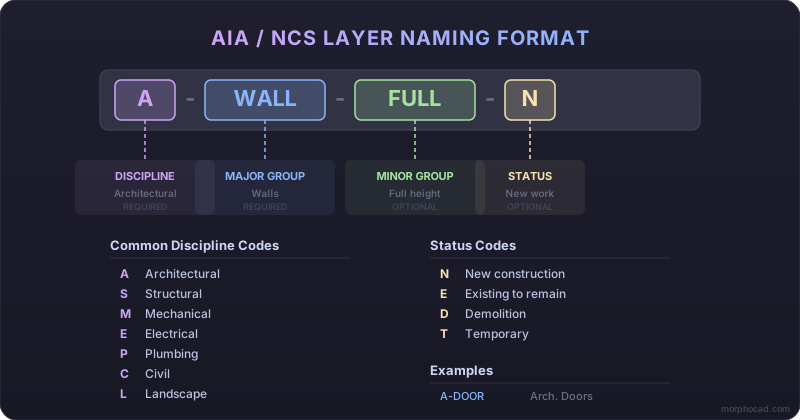
An AIA/NCS layer name consists of up to five data fields, separated by hyphens:
X-XXXX-XXXX-XXXX-X
│  │     │     │   └── Status (1 char, optional)
│  │     │     └────── Minor Group 2 (4 chars, optional)
│  │     └──────────── Minor Group 1 (4 chars, optional)
│  └────────────────── Major Group (4 chars, REQUIRED)
└───────────────────── Discipline Designator (1-2 chars, REQUIRED)
Only the Discipline Designator and Major Group are mandatory. The Minor Group and Status fields provide additional granularity when needed.
Discipline Designators
The first field identifies the professional discipline responsible for the layer content. Level 1 designators use a single character; Level 2 adds a modifier:
| Code | Discipline |
|---|---|
| A | Architectural |
| C | Civil |
| E | Electrical |
| F | Fire Protection |
| G | General (all disciplines) |
| H | Hazardous Materials |
| I | Interiors |
| L | Landscape |
| M | Mechanical |
| P | Plumbing |
| Q | Equipment |
| R | Resource (survey, mapping) |
| S | Structural |
| T | Telecommunications |
| X | Other Disciplines |
| Z | Contractor / Shop Drawings |
Level 2 modifiers add specificity. For example, AD means Architectural Demolition, AE means Architectural Elements, AI means Architectural Interiors.
Major Groups
The four-character Major Group identifies the building system. Common architectural major groups include:
| Code | Meaning |
|---|---|
| WALL | Walls |
| DOOR | Doors |
| GLAZ | Glazing / Windows |
| CLNG | Ceilings |
| FLOR | Floors |
| ROOF | Roofing |
| COLS | Columns |
| STRS | Stairs |
| ELEV | Elevators |
| FURN | Furniture |
| EQPM | Equipment |
| ANNO | Annotations |
| DIMS | Dimensions |
| SYMB | Symbols |
| GRID | Column Grids |
Minor Groups
Minor groups add a further four-character refinement. For example:
A-WALL-FULL- Full-height wallsA-WALL-PRHT- Partial-height wallsA-WALL-PATT- Wall hatch patternsA-DOOR-IDEN- Door identification numbers
Status Field
The optional single-character status field indicates the condition of the element:
D- Existing to be demolishedE- Existing to remainN- New workT- Temporary work
A complete layer name might look like: A-WALL-FULL-N (Architectural, Walls, Full-height, New construction).
Color and Lineweight Standards
The AIA guidelines also recommend color-to-lineweight mappings. While specific assignments vary by firm, common conventions include:
- Pen #4 (thin): Boundary lines, legends, dimensions, notations
- Pen #7 (medium): Construction lines, walls, borders, title blocks
- Pen #11 (heavy): Major infrastructure elements
Colors are typically assigned by layer function: cyan for annotation and dimension layers, red for safety-related electrical layers, yellow for door elements, and so on.
ISO 13567: The International Standard
ISO 13567 is the international standard for CAD layer naming, widely adopted in Europe, Asia, and wherever international project teams need a shared convention. It was first published in 1998 and revised in 2017.
Layer Name Structure
ISO 13567 uses a continuous alphanumeric string with mandatory and optional fields:
Agent - Element - Presentation [-Status] [-Sector] [-Phase] [-Projection] [-Scale] [-Work Package] [-User Defined]
Mandatory Fields
Agent Responsible (2 characters) Identifies the discipline, similar to the AIA Discipline Designator:
A-ArchitectS-Structural EngineerE-Electrical EngineerH-HVAC EngineerP-Plumbing EngineerB-Building Surveyor
Element (up to 6 characters)
Describes the functional building element using classification codes such as SfB, CI/SfB, or Uniclass. For example, a code for "roof windows" might be B374 or a code for "external walls" might be 2110.
Presentation (2 characters) Specifies how the graphic content is represented:
E- Element graphics (model space geometry)T- Text and annotationsH- Hatching and fill patternsD- DimensionsB- Border and title block (paper space)J- Detailing and symbols
Optional Fields
- Status (1 char):
N= new,E= existing to remain,R= to be removed - Sector (4 chars): Physical location -
00--for ground floor,02--for second floor - Phase (1 char):
P= pre-design,D= design,C= construction - Projection (1 char):
0= plan,1= elevation,2= section,3= 3D model - Scale (1 char): Classification by intended drawing scale
- Work Package (2 chars): Material or trade specification
- User Defined: Unlimited custom text
Example Layer Names
A short ISO 13567 name: A-B374-T (Architect, Roof window, Text)
A long ISO 13567 name: A-37420-T2N01B1 (Architect, element code 37420, Text, Section view, New, First floor, Block B, Phase 1)
The flexibility of ISO 13567 is both its strength and its challenge. Teams must agree upfront on which optional fields to use and how to populate the Element field, or the standard loses its interoperability benefit.
BS 1192 / AEC (UK) Protocol
BS 1192 is the British Standard for collaborative production of architectural, engineering, and construction information. While BS 1192:2007 has been superseded by the ISO 19650 series for BIM information management, its layer naming conventions remain deeply embedded in UK practice.
Layer Name Structure
The AEC (UK) Protocol for Layer Naming defines five fields separated by hyphens:
Role - Classification - Presentation [-Description] [-View]
Role / Agent (1 character) Identifies the author or owner of the data:
A- ArchitectS- Structural EngineerE- Electrical EngineerM- Mechanical EngineerZ- General / shared
Classification The most critical field. BS 1192:2007 mandates the use of Uniclass as the classification system. The classification code describes the design component - a Uniclass table reference that identifies the element type.
Presentation Defines the graphical representation: model graphics, dimensions, text, hatching, or annotation elements.
Description (optional)
A human-readable alias clarifying the classification code. Since Uniclass codes are not self-explanatory, this field often carries a plain-English descriptor such as _External_Walls or _Roof_Insulation.
View (optional) Indicates how elements appear in different projections:
- Cut geometry (walls in plan, columns in section)
- Forward-facing elements (windows in elevation)
- Hidden elements (beams below a slab)
- Reflected elements (reflected ceiling plans)
How to Implement Layer Standards in Your Practice
Adopting a layer standard is a multi-step process that requires both technical setup and organizational buy-in.
Step 1: Choose Your Standard
If you work primarily in North America or with U.S. government agencies, AIA/NCS is the default choice. For international projects or European clients, ISO 13567 is appropriate. UK-based firms typically follow the AEC (UK) Protocol derived from BS 1192. Many firms create a hybrid - a company-specific standard built on one of these frameworks with customizations for their typical project types.
Step 2: Create a Template File (DWT)
Build an AutoCAD template file that includes all your standard layers pre-configured with the correct names, colors, linetypes, lineweights, and plot/no-plot settings. This template becomes the starting point for every new project file.
Step 3: Configure Layer Standards Checking (DWS)
AutoCAD's built-in Layer Translator (LAYTRANS) and Standards Checker (STANDARDS) commands allow you to define a standards file (.dws) that flags non-compliant layers. Set up a .dws file that matches your chosen standard and run it periodically. For a more powerful alternative, dedicated CAD standards software can automate enforcement with AI-powered analysis rather than simple string matching.
Step 4: Document Your Standard
Write a concise CAD Standards Manual that your team can reference. Include:
- The complete layer list with descriptions
- Color and lineweight assignments
- Naming rules for project-specific layers
- Instructions for handling layers from external consultants
Step 5: Enforce Through Review
Standards only work when they are enforced. Assign a CAD Manager or BIM Manager to review drawings before major milestones. Use batch auditing tools to check multiple files at once.
Step 6: Automate Where Possible
Manual enforcement does not scale. As projects grow and teams distribute across offices and time zones, automated tools become essential. This is where AI-powered solutions like MorphoCAD can transform your workflow (more on this below).
Common Layer Management Mistakes
Even experienced CAD technicians fall into these traps. Recognizing them is the first step toward fixing them.
Drawing Everything on Layer 0
Layer 0 has a special purpose in AutoCAD - it is the default layer for block definitions, allowing blocks to inherit the properties of whatever layer they are inserted on. Using Layer 0 for general drafting destroys this mechanism and makes visibility control impossible. If you cannot freeze, isolate, or filter your content by layer, you have effectively lost the primary benefit of layers altogether.
Using Vague or Arbitrary Layer Names
Names like "Layer1," "stuff," "COPY (2)," or "DO NOT DELETE" communicate nothing about content. Every layer name should be immediately parseable by someone unfamiliar with the project. Following a recognized standard eliminates this problem entirely.
Assigning Colors and Properties to Individual Objects
When you override an object's color, linetype, or lineweight from "ByLayer" to a specific value, that object no longer responds to layer property changes. This leads to drawings where changing a layer's color affects only some objects on that layer - a debugging nightmare. Set object properties to "ByLayer" and control everything at the layer level.
Ignoring Incoming Layers from XREFs and Consultants
When you attach an external reference, its layers appear in your drawing prefixed with the XREF name. When you receive drawings from consultants with non-standard layers, those layers persist if you copy or bind content. Without a strategy for mapping incoming layers to your standard, your layer list bloats rapidly.
Failing to Purge
Over the course of a project, layers accumulate from inserted blocks, copied geometry, and abandoned design iterations. Use the PURGE command regularly to remove unused layers, reducing file size and layer list clutter. For a complete cleanup workflow, see our step-by-step DWG cleanup guide.
No Documentation
If your layer standard exists only in the memory of your senior CAD manager, it will not survive their departure. Document it, version it, and make it accessible.
How MorphoCAD Helps
MorphoCAD is an AutoCAD plugin that uses AI to automate layer standardization - the most time-consuming and error-prone part of CAD quality control.
AI-Powered Layer Mapping
Instead of manually examining each non-standard layer and deciding where it should map to, MorphoCAD's AI analyzes layer names, object content, and context to suggest the correct standard layer mapping. The AI understands that "ext-walls-new" should map to A-WALL-FULL-N, that "elettrico_illuminazione" is an Italian electrical lighting layer, and that "STR_BEAM_150x300" belongs in the structural domain - regardless of the language or naming convention used in the source file.
Multi-Standard Support
MorphoCAD ships with built-in support for AIA/NCS, ISO 13567, and other major standards. You can also create custom templates that match your firm's specific layer convention. The AI maps incoming layers against whichever standard you select.
Reusable Correction Memory
When you confirm or adjust a mapping, MorphoCAD remembers it. The next time that same non-standard layer appears in any drawing, the correction is applied automatically. Over time, the system learns your firm's mapping preferences and becomes increasingly accurate.
Validation and Health Scoring
Beyond layer naming, MorphoCAD validates layer properties (colors, linetypes, lineweights), checks for objects drawn on Layer 0, flags text and dimension style inconsistencies, and generates a health score for every drawing file. This gives BIM managers a quantitative measure of drawing quality across their project portfolio.
Batch Processing and Reporting
For firms managing dozens or hundreds of drawing files per project, MorphoCAD offers batch processing capabilities. Run standardization checks across an entire project folder and export detailed reports in Excel or PDF format - ready for QA reviews, client submittals, or internal audits.
Team Collaboration
With team workspaces, multiple users share the same templates and correction history. When one team member teaches the system a new mapping, everyone on the team benefits immediately.
Frequently Asked Questions
What is the difference between AIA layer standards and NCS layer standards?
The AIA CAD Layer Guidelines are a module within the U.S. National CAD Standard (NCS). The NCS is a comprehensive standard that also includes the Uniform Drawing System (UDS) for sheet organization, schedules, and drafting conventions, as well as other modules. When people refer to "AIA layer standards," they are specifically talking about the layer naming convention component. When they say "NCS," they may be referring to the broader standard. For layer naming purposes, they are the same system.
Can I mix different layer standards in one project?
It is technically possible but strongly discouraged. Mixing AIA and ISO 13567 layers in the same drawing creates confusion for everyone involved. If your project involves international teams, agree on a single standard at the project kickoff. If you must accept files in a different standard, use a layer mapping tool to translate them into your project's convention before incorporating them.
How do I convert legacy drawings to a modern layer standard?
This is one of the most common challenges in practice. AutoCAD's built-in Layer Translator (LAYTRANS) allows you to create mapping tables that rename layers in bulk. However, for large-scale migrations involving hundreds of unique non-standard layers, AI-powered tools like MorphoCAD can reduce what would be days of manual work to minutes by intelligently suggesting mappings based on layer name semantics and drawing content.
Are layer standards still relevant in a BIM world?
Absolutely. Even firms that work primarily in Revit or ArchiCAD still produce 2D AutoCAD deliverables for certain clients, regulatory submittals, and detail drawings. Additionally, many BIM projects involve 2D CAD files from consultants, legacy projects, and site surveys. Proper layer standards ensure these files can be cleanly integrated. Furthermore, the organizational principles behind layer standards - consistent naming, discipline-based classification, status tracking - translate directly into BIM object categorization and parameter management.
Related: How to Automate AutoCAD Layer Mapping with AI - Learn how AI eliminates manual layer renaming and cuts cleanup time by up to 90%.
Ready to try it? Download MorphoCAD free or Start your free trial. Looking for a Standards Checker alternative? See how MorphoCAD compares.
MorphoCAD is an AutoCAD plugin that brings AI-powered layer standardization to your drafting workflow. Learn more at morphocad.com.